
Engage System Help
Browse the topics below to get the most out of your volunteer experience. New topics are added regularly!
Please check the help icon associated with each screen for help on that page. The help icon is also available in-context throughout the system.
Account Required
Registering for activities and volunteer projects requires you to have an account.
Your contact information will only be used to communicate about volunteer opportunities and activities you register for. We will never sell or give your information to a third party.
Get Started
The following is a list of instructions and videos on how to:
Contact Us
Are you in need of assistance with creating an account, submitting an application, scheduling a shift, or more?
We would love to help you!
Please contact us at:
[email protected]
405.470.2284
New Volunteer Guide
Welcome! This guide walks you through everything you need to get started as a volunteer.
Your First Steps
- Create your account - Click Sign Up and fill in your name, email, phone, and password.
- Complete your profile - Go to My Profile and add your preferences, skills, interests, and availability. This helps us match you with the right opportunities.
- Check your Dashboard - Your Dashboard shows your to-do items, upcoming assignments, and volunteer opportunities tailored to your interests.
- Browse the Calendar - Use the Calendar to see what's coming up and find activities that fit your schedule.
- Sign up to help - Found something you'd like to do? Click Volunteer on the activity to sign up.
Finding Your Way Around
| Navigation Item | What It Does |
|---|---|
| Dashboard | Your home base. See your to-do list, assignments, opportunities, and announcements all in one place. |
| My Profile | Update your contact info, preferences, skills, interests, availability, and emergency contact. |
| Calendar | Browse upcoming activities and events. Click any event to see details or sign up. |
| Shifts | View and register for recurring shift opportunities. |
Quick Answers
Where do I see my hours?
Click My Profile, then View Full History. You can filter by year and print a report of your service.
How do I change my email or password?
Go to My Profile, click Edit, and update your information. For passwords, use the Forgot Password link on the login page.
How do I get matched with the right opportunities?
Go to My Profile and update your Interests under Preferences. The system uses your interests to surface relevant opportunities on your Dashboard and Calendar.
Creating your Account
Getting started is quick and easy. Just fill in a few details and you'll be ready to explore volunteer opportunities.
-
Enter your First Name, Last Name, Email address, Primary Phone and Password. You will use your email address and password to login in the future.
-
Your account will be created and you will be directed to the dashboard.
-
*Note: Only one account can be associated with each email address.
1. Click on Sign Up

2. Type your First Name

3. Type your Last Name

4. Type your Email

5. Type your Phone Number and select if it is mobile, home, or work

6. Check Opt In to Text Messages if desired

7. Type password
Use a strong password: 8+ characters (more is better), mix of letters/numbers/symbols, unique from passwords used elsewhere.

8. Confirm password

9. Check I certify that I am 13 years of age or older and agree to the Terms of Use

10. Click on I'm not a robot

11. Click on Sign Up

Logging In
Choose the login method that works best for you. There are three convenient options:
- Enter your password
- Get a magic link in your inbox
- Enter a One-Time code received on your mobile
1. Click on Login to login to your account

2. Enter Email address

3. To login with your password, Click on Password

4. Type in your password

5. Click on Login

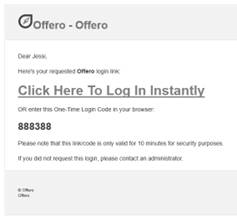
6. To login with an email code, Click on Email Code

7. Check your email
Either enter the code or click "Click Here To Log In Instantly"
8. To login with an One-Time login code, Click on Text Message Code

9. Enter the One-Time Login Code:*

10. Click on Login

Reset your password
No worries if you've forgotten your password! Click the Forgot password link on the login page and enter your email address. We'll send you a reset link that's valid for 24 hours.
Tip: Use a strong password - 8+ characters (more is better), a mix of letters/numbers/symbols, and unique from passwords you use elsewhere.
1. Click on Forgot Password?

2. Enter Email Address

3. Click on Send

Your Dashboard
Your Dashboard is your home base. It's personalized to show the information and actions most relevant to you, so what you see may differ from other users.
1. On the primary top navigation click Dashboard

2. Click on To Do
Actionable items on this tab include updating your profile, signing waivers, completing feedback, and more.

3. Click on My Assignments
These are your next 5 volunteer opportunities you are signed up to help with.

4. Click on Volunteer Opportunities
These are volunteer opportunities that are qualified to do for and match your interests.

5. Click on My Activities
These are activities and publicly-available volunteer opportunities you are signed up for.

6. Click on Upcoming Activities
These are activities and publicly-available volunteer opportunities based on your interests.

7. View Volunteer Announcements, Courses, Awards, and more.

Editing Your Profile
Your profile is where you manage your personal information, preferences, and interests. Make sure you're logged in to see the My Profile button in the top navigation.
1. Click on My Profile from the primary top navigation

2. View your information

3. Click on edit

4. Edit information and click on Save

5. View your Preferences

6. Click on Edit
This will open a new screen. Make sure to click Save at the bottom of the screen.

7. Edit your Volunteer Bio & Preferences
Your photo and Biography will be visible to other volunteers and the public (if you lead public programs) only if you specify.
*Note: Other personal information will not be visible.

8. Edit your Skills & Interests
*Note: The interests you select here will filter the activities and assignments that you will see in “Opportunities” and “Upcoming Activities” on your Dashboard.

9. Edit your Email Opt-Out Preferences

9. Edit your Emergency Contact

10. Edit your Background

11. Edit your Volunteer Availability

12. Scroll to the bottom and click on Save

13. View Waivers
After saving your Preferences, you will return to your Profile. Any waiver(s) will display exactly as you signed.

Prevent Offero Email from Going to Your Junk
✉️ How to safelist an email address with Gmail
Sign in to your account at Gmail.com and do the following.
- ☎️ Add the address to your contacts
Add the email address that is sending you email (e.g. [email protected]) to your Gmail Contacts. Google will usually deliver email from addresses that are in your Contacts.
- Mark messages as ‘Not spam’
If Gmail has marked emails you wish to whitelist as spam, tell Gmail the emails are not spam.
1. In Gmail, navigate to the spam folder
2. Search for emails containing the domain you wish to whitelist (e.g. [email protected]).
3. Select all the emails shown.
4. Click More and then Not spam.
📰 Create a filter for the address
Create a filter to tell Google to whitelist email from a domain.
5. Click the cog icon in the top-right corner, and then Settings
6. Click on Filters and then Create a new filter
7. Choose one of the following steps below. EITHER:
a. enter the domain ( mail.offero.com ) of the email you want to whitelist in the From field
OR
b. Click Create filter with this search
8. In the box headed When a message arrives that matches this search select Never send it to spam
Tips:
• Do not enter email addresses in both the From and To fields as Gmail will only filter in emails that meet both criteria
• In both the From and To fields, you can enter either a specific email address or an entire domain
See also Google’s help on Legitimate mail is marked as spam. https://support.google.com/a/answer/7663057?hl=en
9. Click the Create filter button
📧 How to whitelist an email address with Outlook.com
For Outlook.com, Windows Live Mail, Hotmail and MSN Mail, sign in to your account at Outlook.com and do the
following.
10. Add the address to your contacts
Add the email address that is sending you email (e.g. [email protected]) to your Outlook.com
Contacts. Outlook.com will usually deliver email from addresses that are in your Contacts.
11. Add the address to your safe senders
Click the cog icon in the top-right corner and then More mail settings
Select Safe and blocked senders and then Safe senders
Add the domain ( mail.offero.com ) of the email you want to whitelist to the list of Safe senders
Return to Safe and blocked senders and then select Safe mailing lists
Add the email address to the list of Safe mailing lists
12. More about Safe Senders and Domains
To whitelist all email from a domain, add the domain to the list of safe senders
Tips:
In both the Safe senders and Safe mailing lists, you can enter either a specific email address or an entire domain
In both the Safe senders and Safe mailing lists, you can enter multiple domains or email addresses
See also Outlook.com’s help on I didn’t receive an email someone sent me. https://support.microsoft.com/en-us/office/can-t-send-or-receive-email-in-outlook-com-d39e3341-8d79-4bf1-b3c7-ded602233642?ui=en-us&rs=en-us&ad=us
*Colors and screen layouts may be slightly different depending on your organization's configuration.